When someone searches “bakery near me” or “dentist open now,” the businesses that show up in the map results with photos, reviews, and a phone number get the call. Everyone else gets scrolled past. Those listings are Google Business Profiles, and they are free.
Most business owners know they need one. Far fewer set it up properly. They fill in half the fields, skip verification, and wonder why nothing happens.
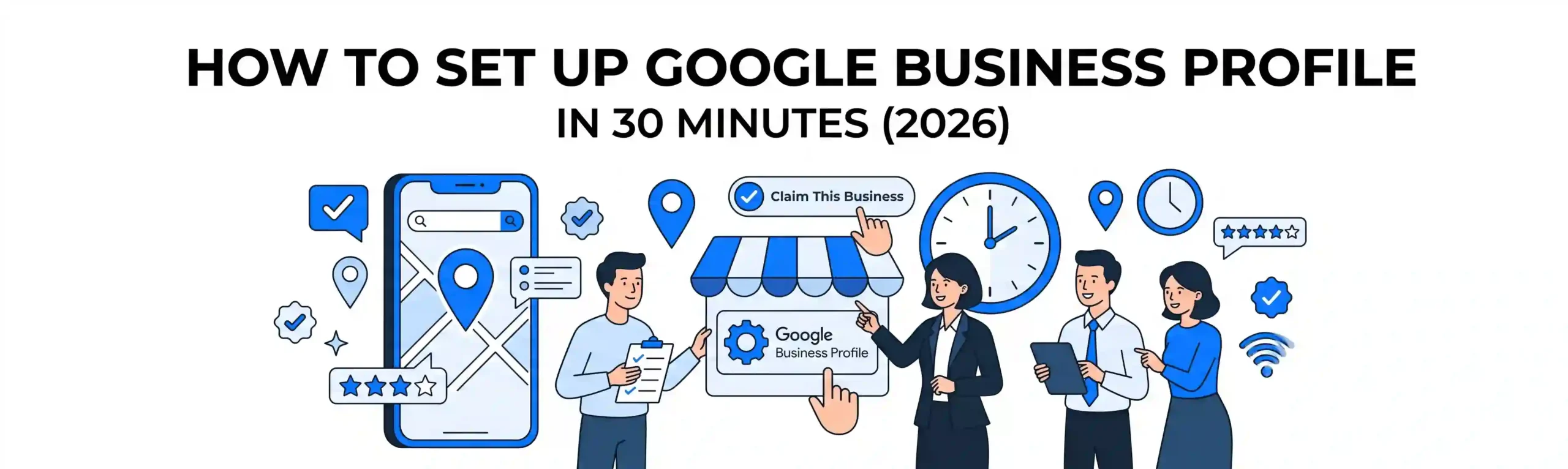
This guide shows you how to set up a Google Business Profile from scratch in about 30 minutes. You will finish with a verified, fully filled-out listing that is ready to appear in local search and on Google Maps.
What You Need Before You Start
Gather these first and the whole process takes half the time:
- Your exact business name, as it appears on your signage and invoices
- Your address (or your service area, if you travel to customers)
- A local phone number and your website URL
- Your opening hours, including holiday hours
- 5 to 10 clear photos: exterior, interior, your team, and your best products or work
- A short description of what you do, in plain language
You also need a Google account. Use one tied to the business, not a personal Gmail you might lose access to. If an employee sets up the profile on their own login and then leaves, you can spend weeks trying to recover it.
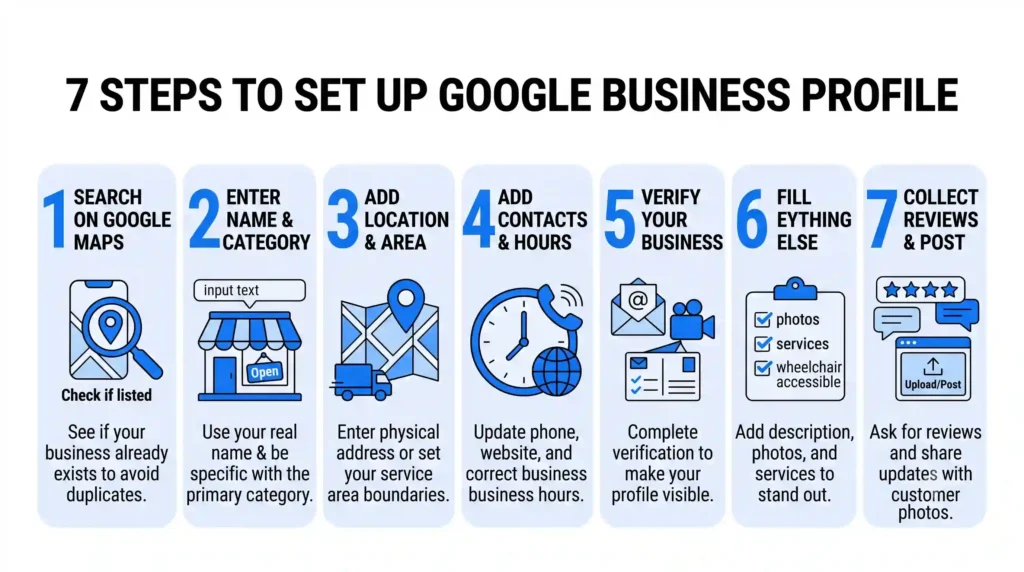
Step 1: Search First, Because Your Business May Already Be Listed
Go to Google Maps and search for your business name. Google often creates listings automatically from public data, so yours may already exist, unclaimed and possibly wrong.
If it exists, click “Claim this business” and follow the prompts. If it does not, choose “Add your business to Google” and create a new one. Creating a duplicate when one already exists is one of the most common mistakes. It splits your reviews and confuses customers, so check before you create.
Step 2: Enter Your Business Name and Category
Type your business name exactly as it appears in real life. Do not add keywords like “Best Cheap Plumber Pune.” Google suspends listings that do this, and it is not worth the risk.
The category matters more. Your primary category is one of the strongest signals Google uses to decide which searches you show up for. A “Bakery” and a “Cake shop” look similar to you but not to Google.
Here is our opinion: be specific, not broad. A “Pediatric dentist” will outrank a generic “Health” listing for searches from parents. Pick the most precise primary category you can, then add 2 to 4 secondary categories for your other services.
Step 3: Add Your Location or Service Area
If customers visit you, enter your street address. If you go to customers, such as an electrician or home cleaner, you can hide your address and list the areas you serve instead.
Be honest here. Google checks addresses, and listing a virtual office or a P.O. box as a physical location is a fast route to suspension.
Step 4: Add Contact Details, Hours, and Your Website
Add your phone number, website, and opening hours. Keep them identical everywhere online. If your profile says you close at 6 PM and your website says 7 PM, you will lose customers and trust.
Set special hours for holidays too. Few things frustrate a customer more than driving to a closed shop that Google said was open.
Step 5: Verify Your Business
This is the step people abandon, and an unverified profile will not show up properly. Google offers a few verification methods depending on your business type:
- Video recording of your location, signage, and equipment
- Phone or text message with a code
- Email with a code
- Postcard mailed to your address (the slowest option)
Choose the fastest option offered to you. A video verification, for example, takes about five minutes and can approve you in a day or two, while a postcard can take over a week.
Step 6: Fill In Everything Else, Because This Is Where You Beat Competitors
Verification gets you on the map. Completeness gets you customers. Take the next ten minutes on these:
- Description: Write 2 to 3 sentences on what you do, who you serve, and what makes you different. Skip the sales talk and be specific.
- Services or products: List each one, with a short description and price where possible.
- Photos: Upload real photos, not stock images. Profiles with real photos get noticeably more engagement.
- Attributes: Mark things like “wheelchair accessible,” “free Wi-Fi,” or “women-led” if they apply.
- Messaging and booking links: Turn them on if you can respond quickly.
Here is a quick scenario. Say a local bakery has a profile with only a name and phone number. Another bakery nearby lists “Custom birthday cakes,” “Eggless cakes,” and “Same-day delivery,” with 12 photos and opening hours. When someone searches “eggless birthday cake near me,” only the second bakery has given Google any reason to show it.
Step 7: Start Collecting Reviews and Posting Updates
A new profile with zero reviews looks empty. Ask your first happy customers for reviews in person, or send them your direct review link, which you can copy from your dashboard.
Reply to every review, good or bad, in a calm and professional tone. Also post updates about offers, events, or new products every week or two. Regular activity tells Google and customers that your business is alive.
Common Mistakes That Hurt Your Ranking
- Stuffing keywords into the business name
- Creating duplicate listings
- Choosing a vague primary category
- Using inconsistent contact details across your website and social media
- Ignoring reviews for months
Avoid these and you are ahead of most local competitors.
Your Next Step
Setting up a Google Business Profile takes about 30 minutes, but a well-set-up one keeps working for you every day. Claim it, verify it, fill in every field, and keep it active with reviews and updates.
If you want to know how your business currently shows up for local searches, we will run a free local visibility check and show you exactly where you are missing out. Get in touch with Nuclay and we will send you a clear report.
Is Your Business Missing Local Leads?
Claim your free local visibility report from Nuclay and fix your search ranking today.
Claim Free ReportFrequently Asked Questions (FAQ)
How long does it take to verify a Google Business Profile?
Video, phone, text, and email verification can be approved within minutes to two days. Postcard verification usually takes a week or longer.
Can you create a Google Business Profile without a physical shop or office?
Yes, if you serve customers in person at their location, like a plumber or home cleaner. You can hide your address and list a service area instead. Online-only businesses with no in-person contact generally do not qualify.
What is the most common mistake when setting up a Google Business Profile?
Adding extra keywords to the business name, such as "Best Cheap Plumber Pune." Google can suspend listings that do this, so always use your real business name.
How long does it take for a new Google Business Profile to appear in Google Search and Google Maps?
Once verified and complete, a profile can start appearing within a few days. Ranking near the top against established competitors takes longer and depends on reviews and how often you update the profile.